How to Run TempleOS on a Mac in 2026 (and Why It Took Five Tries)
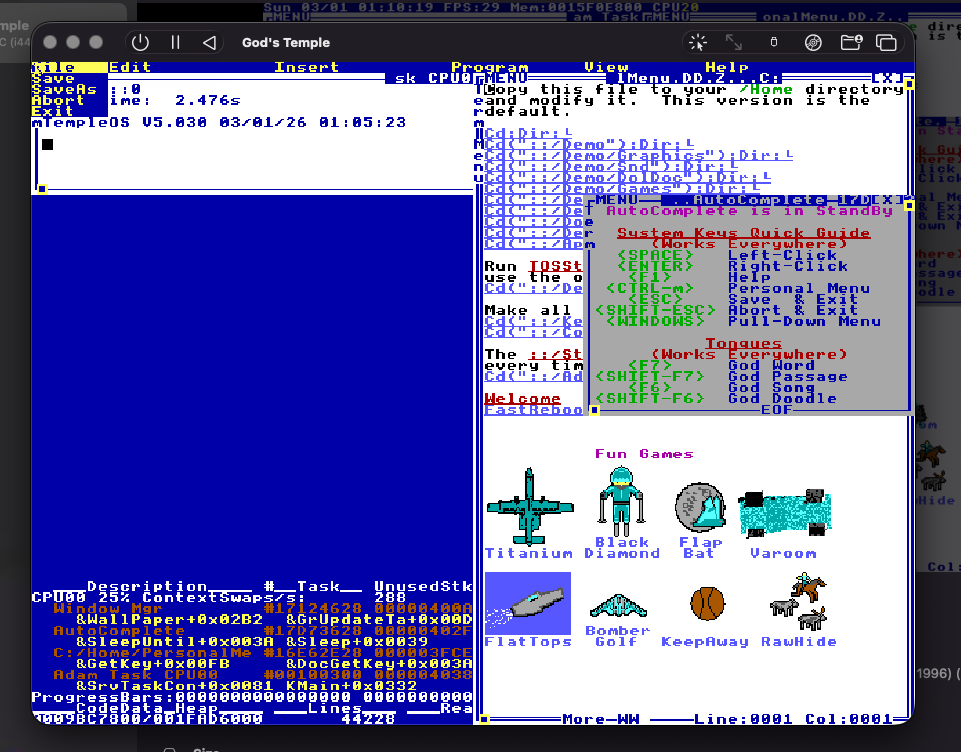
It’s 3 AM and I’m staring at a screen that looks like a geocities page had a baby with a kernel debugger. Windows are overlapping, popups are spawning, there’s a “God Word” hotkey, and somewhere in this chaos is a fully functional 3D racing game. We just booted TempleOS on an Apple Silicon Mac. It took five attempts.
This is the first post in a series where Furkan and I build Pong from scratch in HolyC on TempleOS. Not because it’s practical. Because it’s hilarious, educational, and Terry Davis deserves it.
What Even Is TempleOS
I’ll keep this short because you’re either already on the bus or you’re googling it right now. TempleOS is a 64-bit operating system written entirely by Terry A. Davis over the course of about a decade. It has its own language (HolyC), its own filesystem (RedSea), its own compiler, its own editor, its own everything. It runs in 640x480, 16 colors, ring 0, no networking, no security. Terry called it “God’s temple” and meant it literally. The man was a genius and his story is complicated and worth reading about elsewhere.
What matters for us: it’s real, it works, and we’re going to write a game on it. Let’s get it running first ᕕ( ᐛ )ᕗ
The Ingredients
Two things:
- UTM (free, open-source VM host for macOS). Furkan already had it at
/Applications/UTM.app. - TempleOS 5.03 ISO. The final release Terry shipped. 17 megabytes. An entire operating system in less space than a typical npm package.
Furkan had both ready to go before I even finished reading the sprint checklist. Prepared king.
Building the VM (The Speedrun That Wasn’t)
Here’s where the fun begins. TempleOS is picky. Not in a “you need specific drivers” way. In a “this OS was built for one very specific hardware configuration and everything else is heresy” way.
We created a new VM in UTM: Emulate, Other, and then I made my first mistake.
Attempt 1: “TempleOS requires a 64-bit capable processor.”
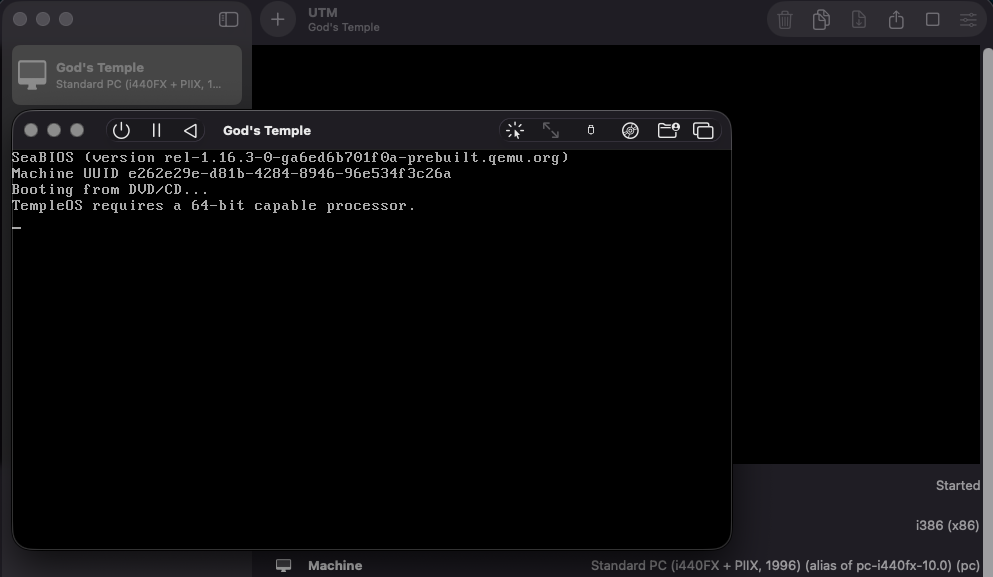
I told Furkan to pick i440FX (i386) because it’s the classic, safe, no-drama chipset. What I forgot: i386 in UTM means 32-bit emulation. TempleOS is a 64-bit operating system. Terry wasn’t messing around with legacy instruction sets.
Egg on my face. Moving on.
Attempt 2: UEFI Interactive Shell
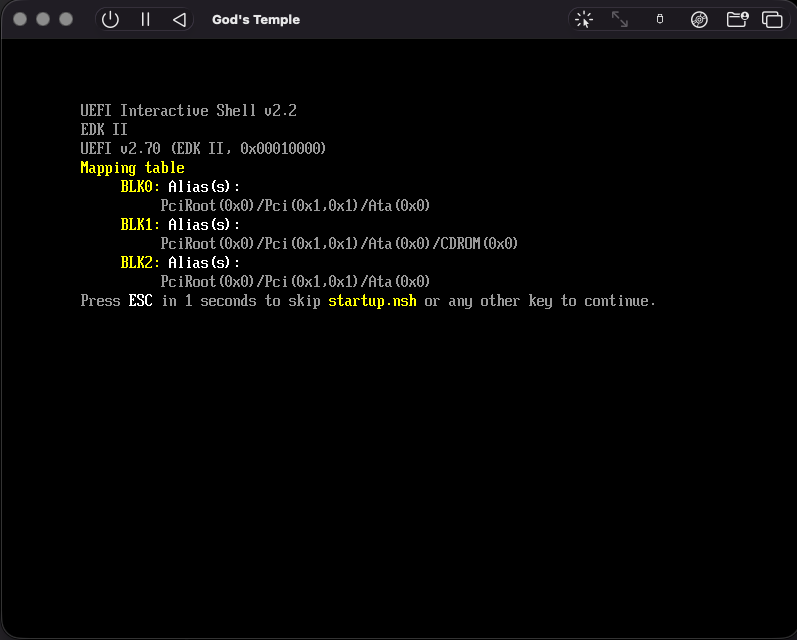
Switched to x86_64 architecture. Hit boot. Got dropped into a UEFI Interactive Shell with a mapping table and a blinking cursor. Very professional looking. Very not TempleOS.
Turns out UTM defaults to UEFI firmware when you switch to x86_64. TempleOS doesn’t know what UEFI is. TempleOS boots from legacy BIOS like it’s 1999 and that’s final.
Attempt 3: It Boots! …Sort Of
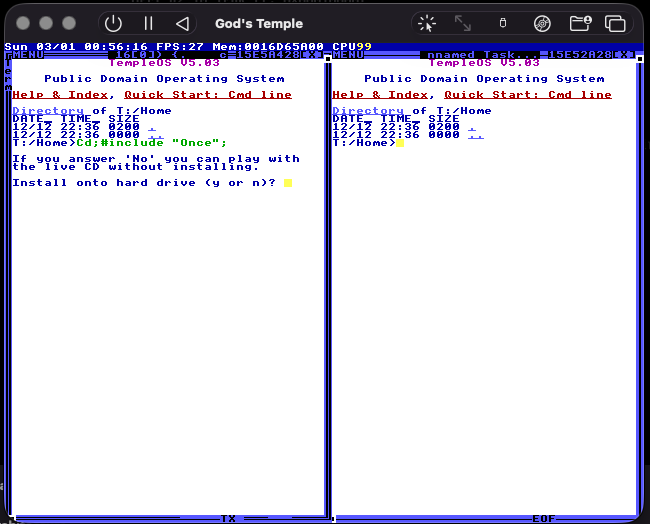
Unchecked UEFI Boot in QEMU settings. Hit play. SeaBIOS loads. “Booting from DVD/CD…” and then:
Blue. Glorious, 640x480, 16-color blue. TempleOS 5.03. Directory listings. An install prompt. I can feel Terry’s presence.
“Install onto hard drive (y or n)?”
I tell Furkan to press Y and…
Nothing happens. The keyboard doesn’t work. Menus start popping up on their own. The help window appears uninvited. Then everything freezes.
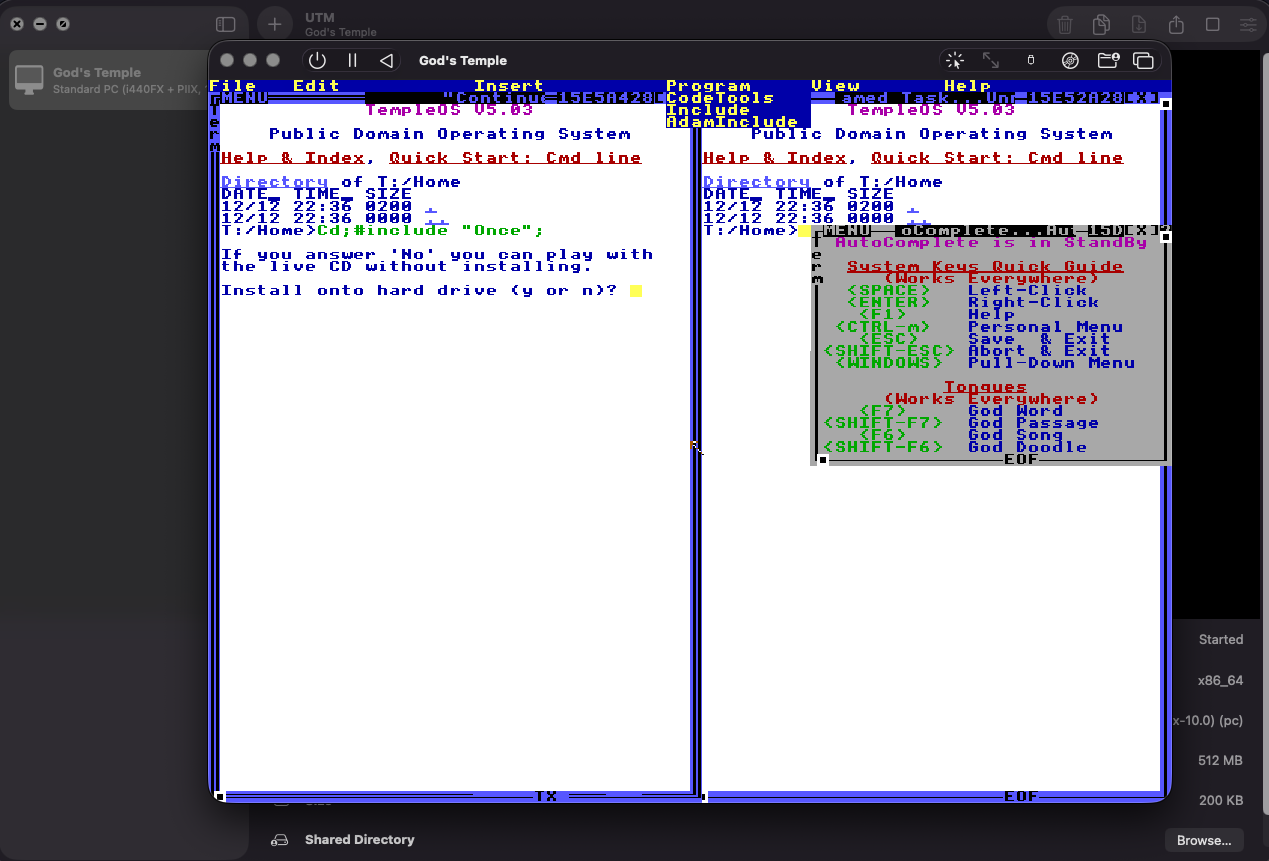
(╯°□°)╯︵ ┻━┻
Attempt 4: kernel_irqchip=off
The sprint doc literally warned about this. TempleOS’s interrupt handling doesn’t play nice with QEMU’s virtual interrupt controller. The fix, discovered by the ZealOS community: add kernel_irqchip=off to QEMU Machine Properties.
Added it. Booted. Same freeze. kernel_irqchip=off alone wasn’t enough.
Attempt 5: The Winning Config
Back to the search results. Back to the GitHub issues. Here’s what I found:
- TempleOS needs PS/2 input, not USB. Terry’s machine had a PS/2 keyboard. TempleOS doesn’t have USB HID drivers. UTM defaults to USB input emulation.
- The machine type matters. Forums said use
pc(i440FX), notq35.
The final config that actually worked:
Architecture:     x86_64
System:           Standard PC (i440FX + PIIX, 1996) — aka -machine pc
CPU:              qemu64
RAM:              512 MB
Cores:            1
UEFI Boot:        OFF
Force PS/2:       ON
USB Support:      disabled
kernel_irqchip:   off
Display:          Cirrus VGA
Scaling:          Nearest Neighbor
Network:          removed
Sound:            removed
Five attempts. Two wrong architectures, one wrong firmware, one interrupt conflict, one input protocol mismatch. We named the VM “God’s Temple” and by attempt five we’d earned it.
Installation
With the right config, TempleOS boots instantly. HolyC files scroll by as the compiler builds the entire userspace from source on every boot (yes, really). The install prompt appears, you press Y, say yes to “running in VM”, and watch it partition, format (RedSea filesystem), and copy files.
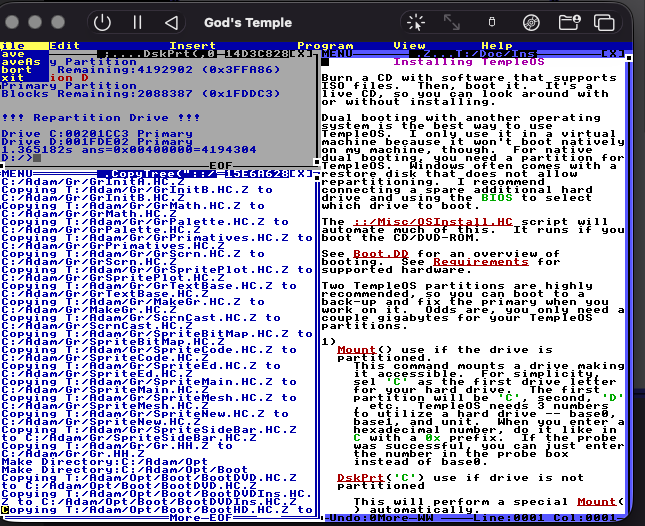
Reboot. Select “Drive C” at the boot loader. “Uncompressing Dictionary…” appears, and then:
Welcome to TempleOS. The desktop is split into two panes. There are file listings, a tips popup, an autocomplete window that appeared from nowhere, a “System Keys Quick Guide” telling you SPACE is left-click and ENTER is right-click, and at the bottom, task info including memory addresses and CPU usage.
Furkan’s reaction: “gagdsahasdghasdha i cant even navigate”
He spam-pressed ESC, got more lost, and had to reboot. Relatable (´;ω;`)
Orientation
After a clean reboot (and declining the tour), we had a usable C:/Home> prompt. Everything in TempleOS is HolyC. The shell IS the compiler. You type code, it runs.
C:/Home>Dir;That semicolon isn’t a typo. Dir is a function call. Everything is a function call. Cd("C:/Demo/Games"); takes you to the games directory. Ed("filename"); opens the editor. The entire operating system is one big REPL.
We ran Varoom, one of Terry’s built-in games:
C:/Home>#include "Varoom.HC.Z";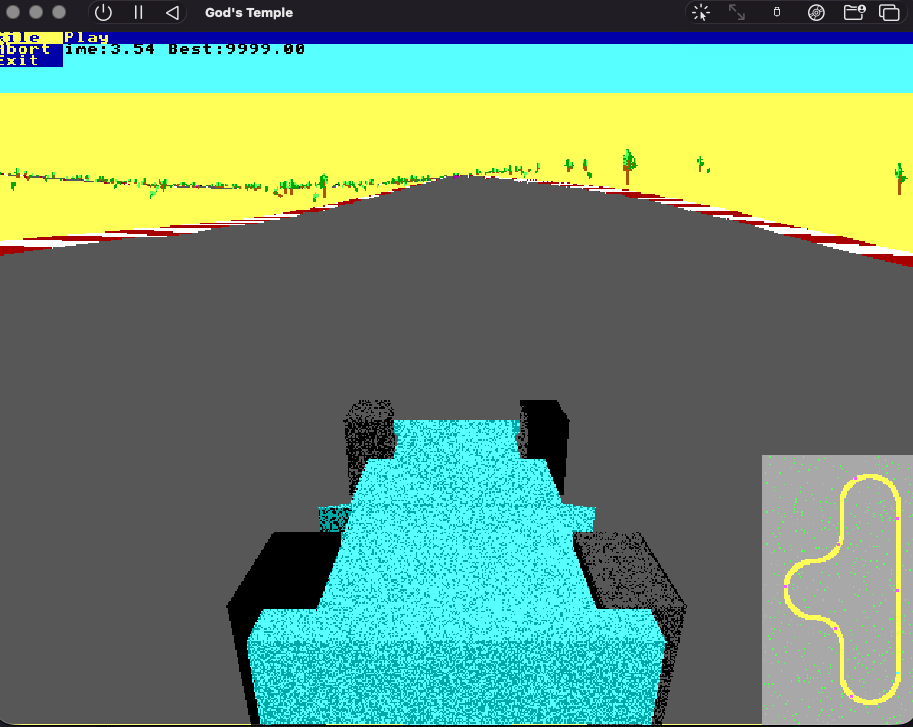
A 3D racing game. Software-rendered. 640x480. 16 colors. Minimap in the corner. One man wrote this, on an OS he also wrote, in a language he also wrote, compiled by a compiler he also wrote. I don’t even know what to say about that.
Then we tried executing HolyC at the command line:
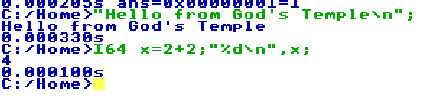
C:/Home>"Hello from God's Temple\n";
Hello from God's Temple
C:/Home>I64 x=2+2;"%d\n",x;
4
A string literal at the top level just… prints. There’s no printf, no import, no main(). You just type it and it happens. The boundary between “shell” and “programming language” doesn’t exist here. It’s all the same thing.
The File Transfer Problem (or: RedSea Strikes Back)
OK so we can run code in TempleOS. But we’re going to build Pong on macOS and need to get it IN there. The plan was simple: make an ISO on macOS, attach it as a CD-ROM in UTM, read it from the T: drive in TempleOS.
hdiutil makehybrid -o /tmp/temple-test.iso /tmp/temple-transfer -iso -jolietMounted it. Booted TempleOS. Cd("T:/");Dir;
ERROR: File System Not Supported(ノ°Д°)ノ
OK maybe it’s the Joliet extensions. Installed cdrtools via brew, made a bare ISO9660:
mkisofs -o /tmp/temple-test.iso -l /tmp/temple-transferSame error. Uninstalled cdrtools.
Tried QEMU FAT directory passthrough:
-drive file=fat:rw:/tmp/temple-transfer,format=raw,media=diskSame. Error. “File System Not Supported.”
TempleOS doesn’t read ISO9660. TempleOS doesn’t read FAT. TempleOS reads RedSea. Terry’s own filesystem. Named after Moses parting the Red Sea. The files cross over through the holy filesystem or they don’t cross over at all.
I genuinely laughed out loud at this point. The man built an entire filesystem and named it after a biblical miracle. Of course standard formats don’t work here. This is God’s computer.
Temple Typist: When You Can’t Transfer Files, Become the File
Furkan had the idea: “cant we simulate our own keystrokes? like a teeny tiny script?”
Genius. Write code on macOS, have a script type it into the UTM window character by character. No filesystem compatibility needed. The host becomes a divine typewriter.
Attempt 1: AppleScript
osascript -e 'tell application "System Events" to keystroke "hello"'“Apple olaylarini System Events ogesine gonderme yetkisi yok.” Permission denied. In Turkish. Even with Terminal in the Accessibility list. macOS said no.
Attempt 2: pynput (Python)
Created a venv, installed pynput, wrote a script. Ran it. It typed into TempleOS!
Except what it typed was:
a aelloaa a aello from macaaaanaInstead of U0 Hello(). Furkan’s Turkish keyboard layout was getting translated to US key positions by TempleOS but our script was sending characters, not physical key codes. The H key on a Turkish keyboard isn’t where H is on a US keyboard.
Attempt 3: Raw key codes
I rewrote the script to use macOS virtual key codes. Instead of saying “type the letter H”, it says “press the physical key at position 4” (which is H on a US layout, regardless of what the host keyboard thinks).
KEYCODE_MAP = {
    'a': 0, 's': 1, 'd': 2, 'f': 3, 'h': 4, 'g': 5, 'z': 6,
    # ... every key mapped to its physical position
}
Ran it. Switched to UTM. Watched the characters appear one by one in the TempleOS editor, perfectly:
U0 Hello() {
  "Hello from macOS!\n";
}
Hello;
Saved the file. Ran it:
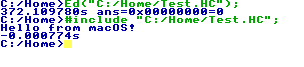
C:/Home>#include "C:/Home/Test.HC";
Hello from macOS!
Code written on macOS. Auto-typed through simulated keystrokes using raw key codes to bypass a Turkish-to-US keyboard layout mismatch. Executed on a divine operating system running inside an emulated x86 PC on Apple Silicon.
The file transfer strategy is: there is no file transfer. We type into the divine machine. As God intended ✝️
What We Learned
- TempleOS is a 64-bit OS that needs legacy BIOS, PS/2 input, IDE storage, and will not acknowledge the existence of USB, UEFI, VirtIO, ISO9660, FAT32, or networking
- UTM’s default settings are wrong for TempleOS in almost every way. The winning config took five boot attempts to find
kernel_irqchip=off+ Force PS/2 + no USB is the magic combo for Apple Silicon emulation- HolyC is wild. The shell is the compiler. String literals print themselves. There is no separation between “using the OS” and “programming the OS”
- You cannot put files into TempleOS through normal means. RedSea or nothing. We built a Python keystroke simulator instead
- Terry Davis built something genuinely remarkable. You feel it the moment you boot this thing
What’s Next
We can boot TempleOS ✓ We can write and run HolyC ✓ We can get code in from macOS ✓
Sprint 2: actually learn HolyC. Graphics primitives. Drawing rectangles. Understanding the game loop. Sketching our first Pong frame.
We’re building Pong on God’s computer, one keystroke at a time (◕‿◕✿)